
Why Your AI Images Look Fake (And How to Fix It)
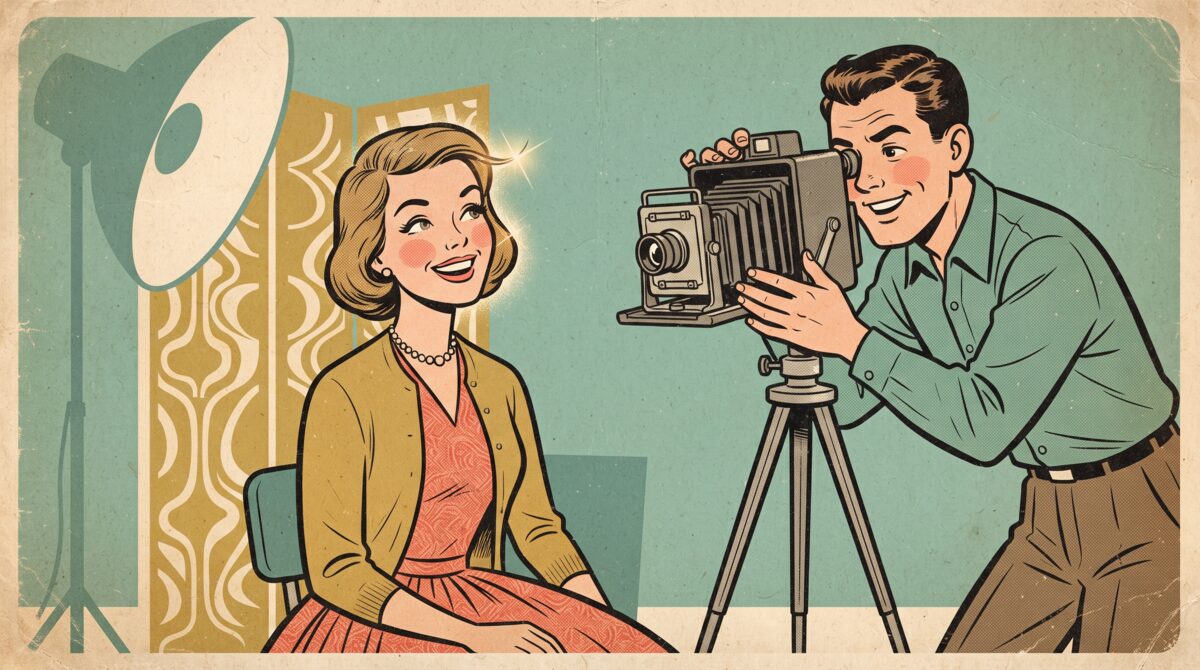
Nobody tells you this part. AI images don't look fake because the model messed up. They look fake because it did exactly what you asked, and what you asked for was perfection.
Plastic skin. That soft waxy glow. Symmetry so clean it looks like it was measured with a ruler. That's not a flaw in the output. That's the tell. Real photos are messy. AI photos are flawless, and flawless reads as fake every single time.
So I stopped prompting for beautiful. I started prompting for the flaws instead.
Prompt the Imperfections, Not the Ideal
Name an actual lens. 35mm, not "professional camera." Set a light direction instead of just asking for good lighting. Offset the subject so it's not dead center in the frame. Throw in loose strands of hair, a scuff, some tiny asymmetry in the face. These are the details a real camera catches by accident that a generator skips unless you ask for them on purpose.
Then there's the upscale step, which most people get backwards. Upscaling is supposed to sharpen texture, not smooth it out. If your upscale pass is making skin look glassier, you're polishing the exact thing that's giving you away.
Perfect is the fingerprint. Flawed is the disguise.
I burned an entire afternoon testing this combination before it clicked. Lens, light direction, off-center framing, small imperfections, sharpen instead of smooth. Stack all five and the image stops screaming "AI made this" and starts just looking like a photo someone took.
Go Break Something on Purpose
Next image you generate, don't ask for beautiful. Ask for a lens, a light direction, an off-center subject, and one small flaw. Then sharpen it instead of smoothing it. That's the whole fix, and it costs you nothing but a slightly different prompt.
#AItools #AIimages #PromptEngineering #DesignTips #AIphotography
A free written review of your engineering and AI setup.
What I would fix first, what I would leave alone, and where AI would actually save money. Written, and yours to keep.
Request the free written review